
One source of truth across Tableau and Sigma, in one click
One source of truth across Tableau and Sigma, in one click
Most of the enterprises we work with are not picking one BI tool. They are running two. Tableau is somewhere in the org because that is where the curated dashboards and the trusted business logic have lived for years. Sigma is somewhere else because finance, ops, or product wanted live warehouse data with a spreadsheet feel and the ability to write back. Both tools are doing real work. Neither is going away.
The friction shows up in a question we hear constantly: "why does the Tableau dashboard say 14.97% and the Sigma workbook say 14.91% for the same metric?"
Usually the answer is boring. Someone rebuilt the calculation in Sigma against a different upstream source, or the Tableau extract is on a different refresh cadence, or a level-of-detail expression in Tableau is doing something a SQL view in Sigma is not. The numbers drift. Trust drifts. People stop using one of the tools, or worse, both.
There is now a clean way to fix this without ripping anything out. Tableau's VizQL Data Service lets you query a published data source over HTTP and get back the same numbers that dashboard would render, with calculations and row-level security already applied. Sigma's API Connectors (currently in Beta) let a workbook call any HTTPS endpoint and bring the response into the page. Put those two together and a Sigma user can see Tableau's canonical numbers, live, in a Sigma workbook, with one click.
This post walks through exactly how to set that up. The goal is a single source of truth for any team running both tools. No double work. No reconciliation meetings.
Why this matters before we build it
If you are a business user, the value is direct. You can stop arguing about which tool has the right number. The Sigma workbook fetches the metric live from the same Tableau published data source that finance signed off on. Sigma stays the place where you do scenario work and write decisions back to the warehouse. Tableau stays the place where the calculation is governed. The number is the same in both places because both places are reading from the same definition.
If you are a technical user, the value is architectural. You do not have to migrate calculations out of Tableau. You do not have to clone row-level security in two places. You do not have to spin up a sync job that copies extracts into the warehouse for Sigma to consume. The Tableau publishing process you already trust becomes the source of truth, and Sigma reads it on demand.
The trade-offs are real and worth flagging up front. This pattern is best for single-record lookups and KPI tiles, not for table-shaped data feeds. VizQL Data Service has a query limit (100 per hour per Creator license on the Tableau site), so it is not a substitute for a warehouse-scale data source. And Sigma's API Connectors are in Beta, which means a few rough edges that I will call out as we go.
For most "I just need the same KPI in both tools" cases, those trade-offs are easy to live with.
What you need before starting
On the Tableau side:
Tableau Cloud, or Tableau Server 2025.1 or later
A published data source you want to expose
The API Access capability granted on that data source for the user account that will authenticate
A Personal Access Token (PAT) for that account
On the Sigma side:
Admin access to the org (specifically the Manage API connectors permission)
API Connectors Beta enabled (it appears in the Administration panel as "API connectors")
A workbook to put the demo in
That is the full prerequisite list. No proxy. No middleware. No extra licensing.
Step 1: Confirm Tableau-side access with curl
Before touching Sigma, prove the Tableau side works from a terminal. If something breaks later in Sigma, this gives you a known-good baseline.
Set environment variables for everything you will need. Replace the values with your own.
Sign in to Tableau and capture the session token:
List your data sources to find the LUID of the one you want to expose:
Pick the LUID for the published data source you want and export it. Then test VizQL Data Service against it:
You should get back a list of fields with their captions, data types, and default aggregations. If you do, the Tableau side is working and we can move to Sigma. If you get a 403, the API Access permission is not granted on the data source. Fix that and re-run.
Worth noting: the field names returned here (the
fieldCaptionvalues) are exactly what Sigma's connector will reference. Save this output. You will need it.
Step 2: Create the credential in Sigma
In Sigma, go to Administration > API connectors > Credentials > Create credential.
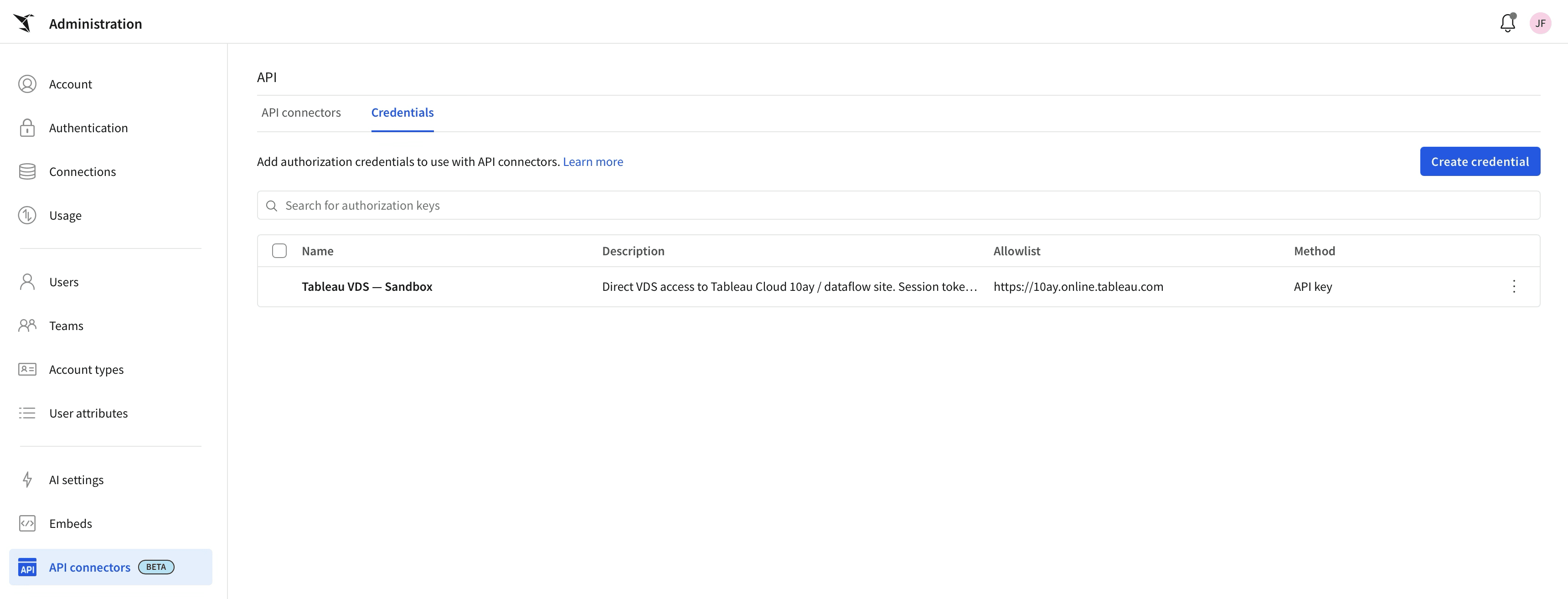
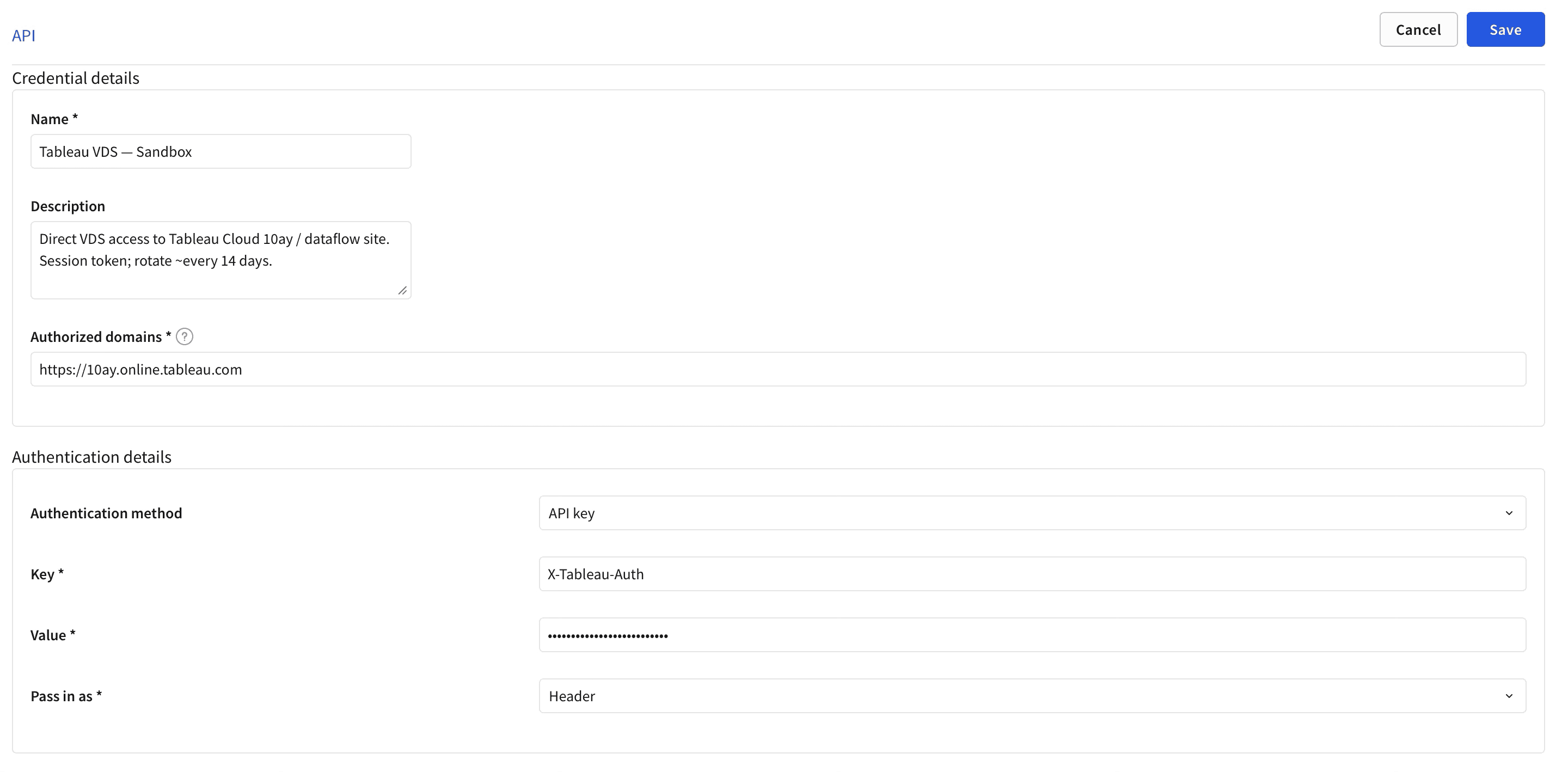
Fill in:
Name: something descriptive like
Tableau VDS - <env>Authorized domains:
https://<your-pod>.online.tableau.comAuthentication method: API key
Key:
X-Tableau-AuthValue: the session token from Step 1
Pass in as: Header
Save.
The reason for choosing API key instead of Bearer token here: Tableau expects its session token in a custom header named X-Tableau-Auth, not the standard Authorization: Bearer format. Sigma's API key auth method lets you pick any header name.
A note on session token lifetime: Tableau session tokens expire (typically after a few hours of inactivity, configurable by your Tableau admin). For a demo or sandbox, paste a fresh one and move on. For production, put a small auth proxy in front that holds your PAT or a Connected App key, exchanges it for a session token on demand, and presents a long-lived bearer to Sigma.
Step 3: Create the connector
Switch to the Connectors tab in the same admin section. Click Create connector.
Configure as follows:
Name:
Tableau VDS Query DatasourceAuthentication credential: the credential from Step 2
Connector type: Custom connector
Base URL:
HTTP method:
POSTURL:
https://<your-pod>.online.tableau.com/api/v1/vizql-data-service/query-datasource
Request headers: add
Content-Type: application/jsonRequest body: select raw, then JSON, then paste the body below
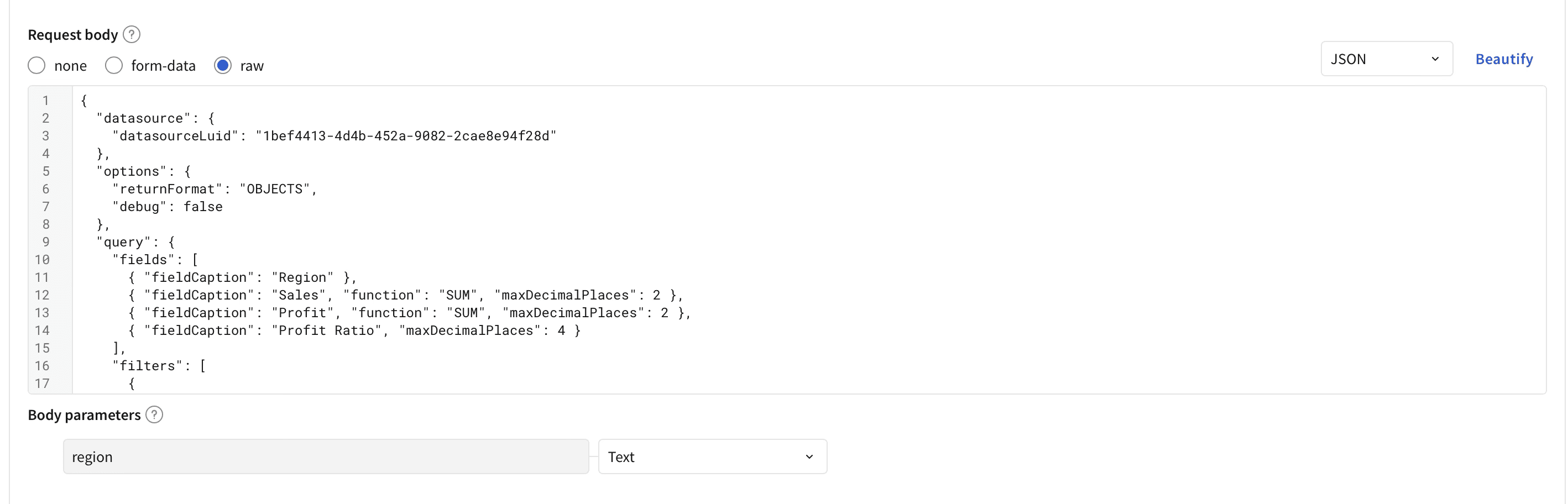
Two things to flag here. They are easy to get wrong on the first try.
The {{region}} placeholder is not wrapped in quotes. Sigma's body templating is type-aware. When the dynamic value's type is set to Text, Sigma quotes the substituted value at request time. If you pre-quote it in the editor, you get a JSON validation error: "Expected ']' String variables should not be wrapped in quotes." I have hit this. Sigma is right to reject it, but it is not obvious unless you know.
Set the dynamic value type explicitly. When {{region}} appears in the body, the form will let you assign a Type. Set it to Text.
The query body itself is doing real work. It tells VizQL Data Service to return one row of aggregated metrics for whichever region the workbook user has selected, including the Profit Ratio calculation that lives inside the published Tableau data source. That calc is SUM([Profit])/SUM([Sales]), and Tableau's engine evaluates it server-side. Sigma never sees the raw Profit and Sales values that fed the ratio. That is the punchline.
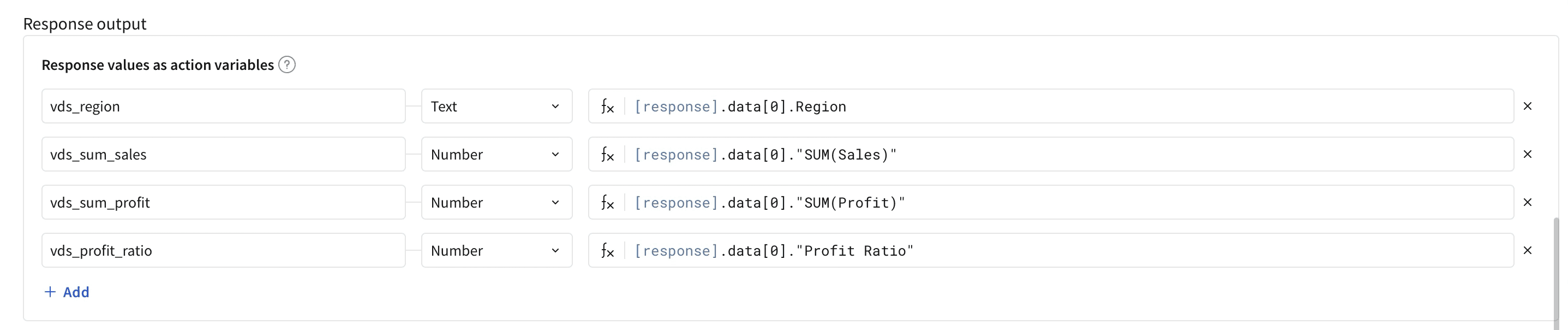
Configure the response output
Scroll to Response output and add four scalar action variables. These are what the workbook will bind to.
Name | Type | Formula |
|---|---|---|
| Text |
|
| Number |
|
| Number |
|
| Number |
|
The double quotes around "SUM(Sales)" are required because the field name contains parentheses.
Test before saving
Click Test connector at the top of the form. In the modal, enter West for the region dynamic value (or any region your data source has). Click Test.
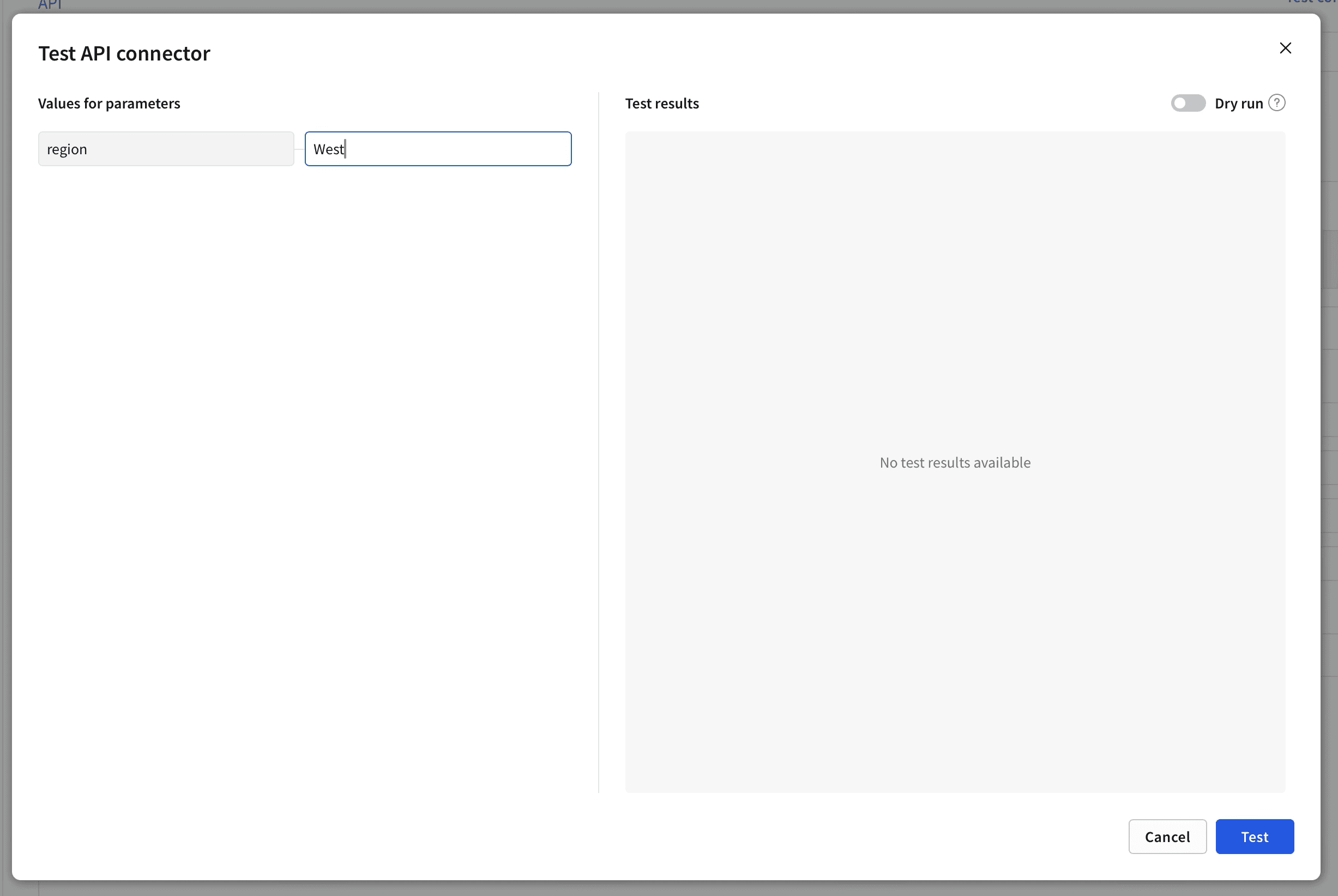
You should get back a 200 response with a single-row JSON payload. Something like:
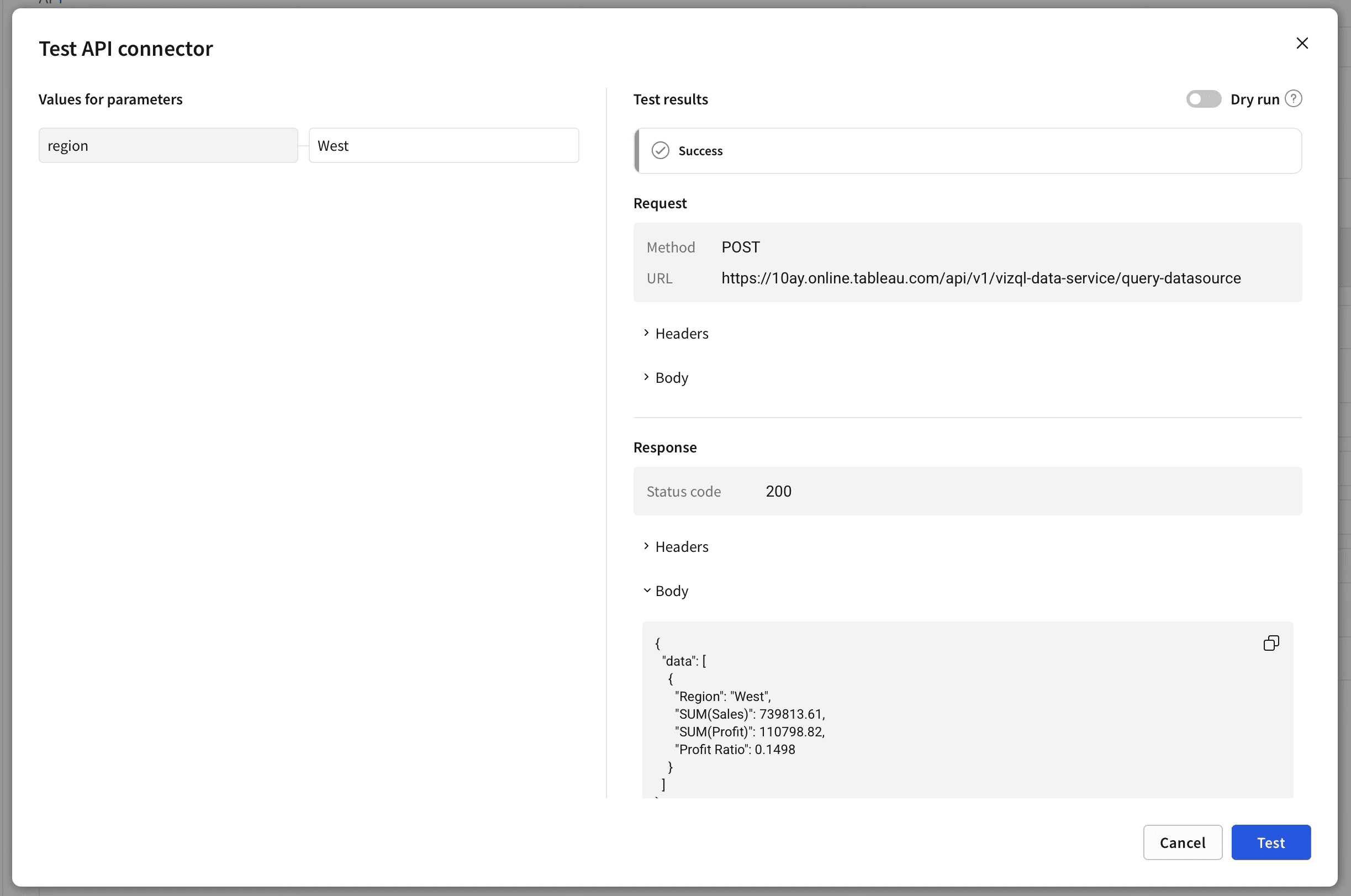
If you see this, save the connector and move on. If you see an error, the most common culprits are the session token expired (re-run the curl signin), or a typo in the data source LUID, or the API Access permission is missing on the data source.
Step 4: Build the workbook
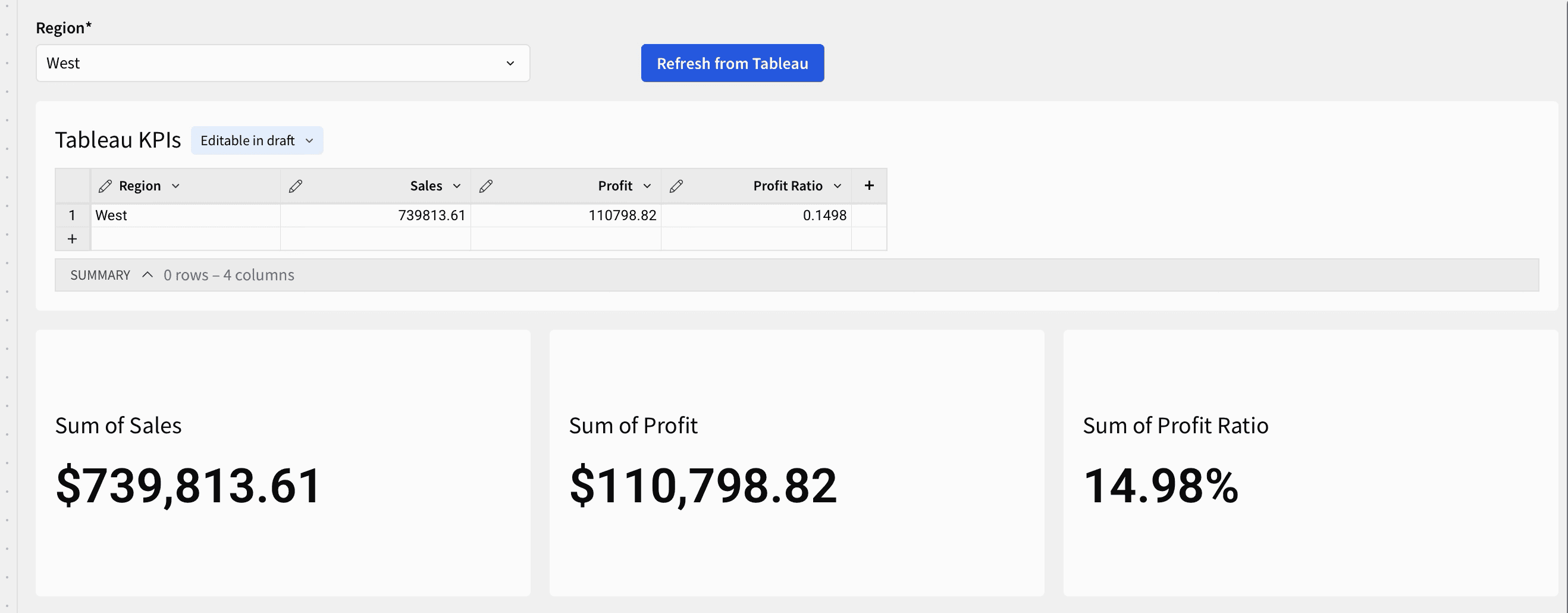
We need a workbook with four ingredients: a region picker, a refresh button, a single-row input table to receive the response, and KPI tiles bound to that input table.
Create a new workbook. Add the elements in this order.
Region control. Drag a Control > List values onto the page. Configure with values Central, East, South, West. Single-select. Default West.
Input table. Drag an Input table > Empty input table onto the page. Pick whichever warehouse connection you want it backed by. Name it Tableau KPIs. Add four columns: Region (Text), Sales (Number), Profit (Number), Profit Ratio (Number).
Three KPI charts. Drag a KPI chart onto the page three times. For each, set the source to the Tableau KPIs input table. Bind:
KPI 1 to the
Salescolumn withSumaggregation, currency formatKPI 2 to the
Profitcolumn withSumaggregation, currency formatKPI 3 to the
Profit Ratiocolumn withFirstorSumaggregation, percent format
Refresh button. Drag a Button onto the page. Label it Refresh from Tableau.
Wire the action sequence
Select the Refresh button. In its right-hand panel, click Add action. Build a sequence with three steps.
Step 1: Modify input table > Delete rows. Target Tableau KPIs. No condition. This makes the refresh idempotent.
Step 2: Call API. Select the Tableau VDS Query Datasource connector. For the region dynamic value, set source to Control and select your Region control.
Step 3: Modify input table > Insert row. Target Tableau KPIs. Map each column to an action variable from Step 2:
Region←vds_regionSales←vds_sum_salesProfit←vds_sum_profitProfit Ratio←vds_profit_ratio
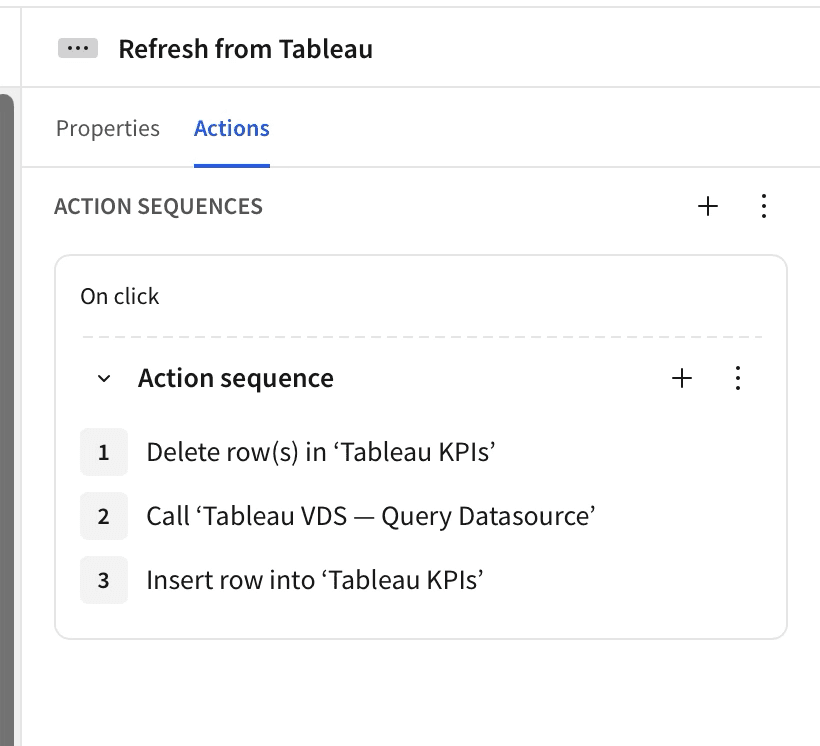
Save the action sequence. Publish the workbook.
A note on what you will not see in the dropdown
When configuring the Insert row step, you might notice that some action variables are greyed out. This is a real Beta limitation worth understanding.
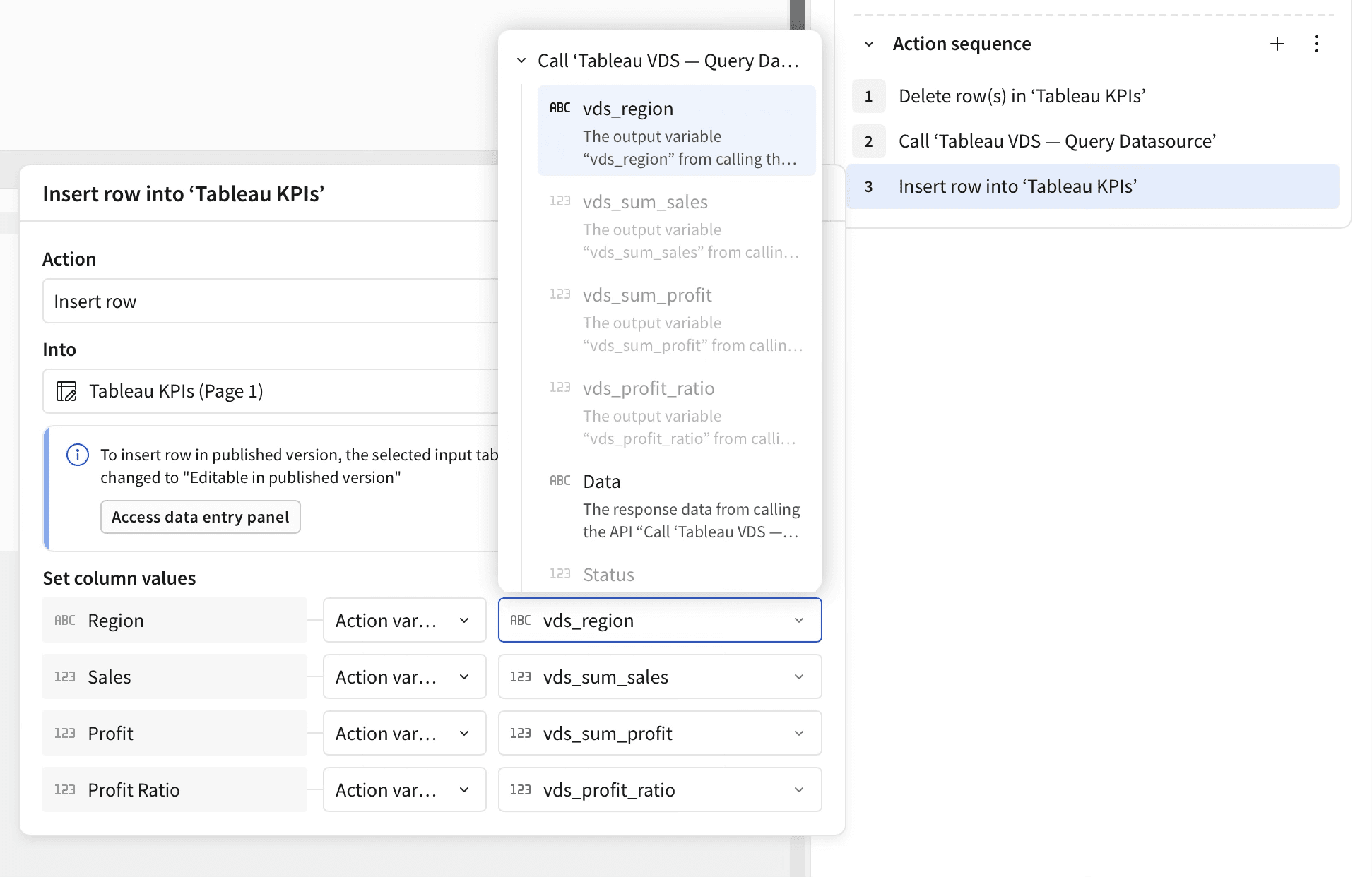
The greyed-out variables are Array-typed. Sigma's "Insert row" action is singular and only accepts scalar inputs per column. The Beta does not yet expose an "Insert rows from array" action or a usable for-each loop, which is why the workflow above uses a single-row aggregation in the connector body rather than returning a multi-row table. This is a known limitation in the current Beta and a clear candidate for Sigma to ship next. For most KPI use cases, single-row aggregation is the right shape anyway.
The action variables that do work for binding are scalars. You can see them listed in the connector's Outputs panel, and they appear cleanly in the column-source picker as bindable values.
Step 5: Run it
Pick a region. Click Refresh. The KPI tiles update with Tableau's numbers for that region.
Change the region to "East" and click Refresh. The numbers update.
That is the whole loop. The numbers you see in those KPI tiles came from Tableau's VizQL Data Service. The Profit Ratio tile is the giveaway: that ratio was computed by Tableau's engine using the formula in the published data source, not by Sigma. Sigma never saw the raw numerator or denominator.
If you have a Tableau dashboard open in another tab using the same published data source, you can verify these match exactly.
What this gets you
For an organization running both tools side by side, this pattern is the closest thing to a single source of truth you can build today without migrating anything. Specifically:
No double maintenance. The calculation lives in Tableau's published data source, where it already lives, where it is already governed, and where the team that owns it already knows how to update it. Sigma reads it on demand.
No drift. Both tools are reading from the same definition. A change in Tableau is reflected in Sigma's next click of the Refresh button.
No new pipeline. No nightly extract job copying Tableau data into the warehouse. No reverse ETL. No middleware.
No license shuffle. This works inside the licenses you already own, with API Access on the Tableau side and the API Connectors Beta on the Sigma side.
It is also worth being honest about what this pattern is not. It is not a replacement for a Sigma data model. You are not going to drag Tableau-published dimensions onto a Sigma chart and have Sigma push filters down to Tableau. The action-time Call API pattern is built for KPIs and contextual lookups, not interactive analytic exploration. For that, the right answer is to land Tableau's data in your warehouse on a schedule and surface it through a real Sigma data model. We can talk about that pattern separately.
For "the same number, in both tools, right now," this is the build.
A few things we learned doing this for the first time
A handful of small things that cost us time the first time through. You can skip the same lessons.
Start with curl, not Sigma. Validate that VizQL Data Service is responding to your PAT and your data source LUID before you touch anything in Sigma. If something breaks in the connector later, you know it is a Sigma-side problem and you can stop debugging Tableau.
The placeholder is not quoted. I will say it again because it is the single most common first-attempt error.
"values": [{{region}}], not"values": ["{{region}}"]. Sigma quotes the substituted value at runtime when the type is Text.Aggregate in the VDS query, not in Sigma. The Beta cannot bulk-insert array variables into an input table. Shape the VDS query so it returns one aggregated row, expose the metrics as scalar variables, and bind the scalars. Trying to fight this with for-each workarounds is not worth it in current Beta.
KPIs source from data, not from controls. Land the response in a one-row input table and source the KPI from that. Controls are inputs, not data sources.
Session tokens expire. Plan for it. For demos, paste a fresh one. For anything that has to keep working unattended, put a thin auth proxy in front that handles the sign-in dance for you.
If you want help making this real
We have built variations of this for clients running both Tableau and Sigma, and we have built the proxy layer that takes it from "demo" to "production." If your team is in this situation, where the same numbers are showing up in two tools and the reconciliation work has become its own project, we can help.
Two ways to start.
If you want to talk through your specific setup, reach out. Tell us what data is in Tableau, what your team is doing in Sigma, and what number is causing the most friction. We will tell you whether this pattern fits and what it would take to roll it out.
If you would rather poke at it yourself first, the curl commands and JSON bodies above are everything you need to validate the Tableau side in your own sandbox. Run those. If they work, you can build the Sigma side in an hour. The hardest part is deciding which metric to expose first.
Either way, the pattern is real, the build is short, and the result is one number in both tools.
Cogs & Roses helps enterprises and high-growth teams design and build modern data systems. Sigma, Tableau, Snowflake, dbt, and the custom software that ties them together. Smaller team. Senior engineers. No layers.
Subscribe to our newsletter, The Petalworks Terrace, for posts like this one.

A publication by Cogs & Roses